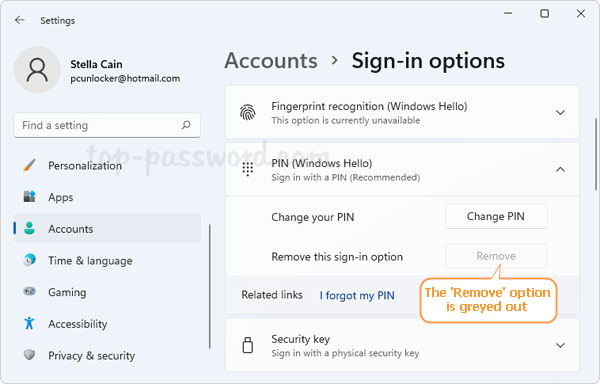
Can’t remove Windows Hello PIN and the “Remove” button is greyed out? By default, the passwordless option is enabled in Windows 11 so you can log into your Microsoft account with a PIN code. However, when you try to remove the PIN sign-in option, you’ll find the “Remove” option is greyed out. To fix this issue, you need to use the following methods to turn off passwordless sign-in option on Windows 11.
Method 1: Disable Passwordless Sign-in on Windows 11 via Settings App
Open the Settings app and navigate to Accounts -> Sign-in option. On the right side, scroll down to the “Additional settings” section, Turn Off the toggle switch next to “For improved security, only allow Windows Hello sign-in for Microsoft accounts on this device“.
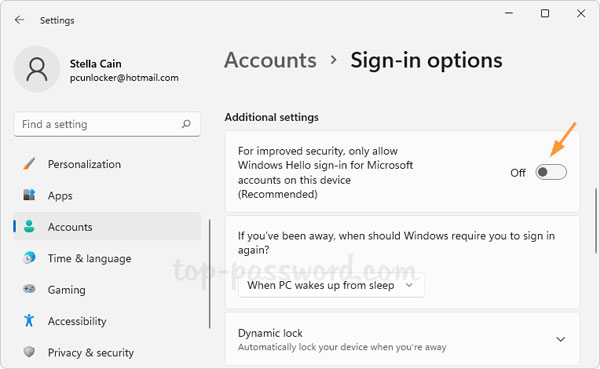
Close the Settings app and then open it again, you’ll find the option of removing Windows Hello PIN is clickable.
Method 2: Disable Passwordless Sign-in on Windows 11 via Registry Editor
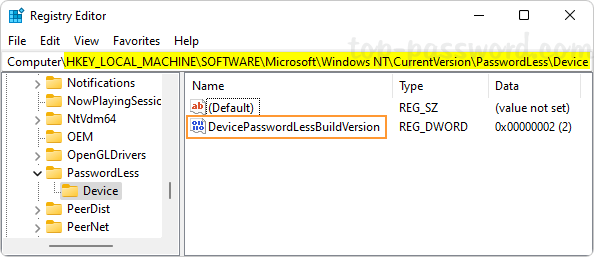
Open Registry Editor and browse to: HKEY_LOCAL_MACHINE\SOFTWARE\Microsoft\Windows NT\CurrentVersion\PasswordLess\Device. On the right pane, double-click the DWORD value DevicePasswordLessBuildVersion.
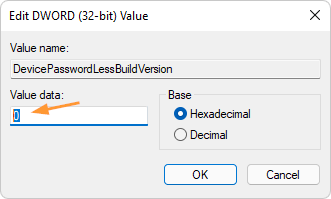
Change its value data from 2 to 0. Click OK.
Close Registry Editor. Open the Settings app and go to Accounts -> Sign-in option. Expand the PIN (Windows Hello) section and the Remove button will no longer be greyed out.
That’s it!