I just switched over from Windows XP to Windows 8 and for some reason. But now I can’t remember The password that I used for Microsoft account. Is there any way to recover or reset the Microsoft account password so I can regain access to my computer?
Lost or forgot your Microsoft account password? Windows 8 allows you to sign in to your computer using either a Microsoft account or a local user account. If you have forgotten the password for the Microsoft account that you use to log in to your Windows 8 computer, it seems to be impossible to hack into your computer. In this article we’ll show you two methods to help you reset lost Microsoft account password in Windows 8.
Method 1: Reset Lost Microsoft Account Password Online
If you’re using a Microsoft Account instead of a local user account, you can reset your password online if you forget it. To do so, visit the Reset Your Password page on Microsoft’s website. Enter your account’s email address and enter the CAPTCHA code to confirm you’re a human being, not a robot.
There are a number of ways to receive a reset link, including via email to the address associated with your account, a code sent via SMS message to a phone you’ve associated with your account, and a PC you’ve trusted to access your Microsoft account.
When the password is reset, you will be able to use your Microsoft account with the new password to sign in to your Windows 8 computer. Make sure the Windows 8 computer is connected to the Internet before you attempt to sign in.
Method 2: Reset Lost Microsoft Account Password with Boot Disc
There are tons of password recovery boot discs available on the internet which can help you recover or reset lost Windows local account password. But they don’t support Microsoft account password recovery at all, except the Reset Windows Password utility.
Reset Windows Password utility basically boots off from a WinPE disc and hack into the SAM database that stored the password hash of Microsoft account and reset your account’s password from there. Let’s see how can use it to reset your forgotten Microsoft account password in Windows 8:
- First, you need to find an alternative computer in order to make a bootable Live CD. Download the Reset Windows Password utility and save it on the computer. Unzip the download file and you’ll get an ISO image file called ResetWindowsPwd.iso. Burn the ISO file to a blank CD (or USB flash drive) using ISO2Disc program.
- Next, insert the Live CD into your locked Windows 8 computer and boot the computer from it. If you don’t know how to set your computer to boot from CD, please refer to your computer’s manual or check out this guide: How to Boot A Computer from CD or USB Drive.
- The computer will load the mini operating system inside the Live CD and open up the Reset Windows Password window as follow.
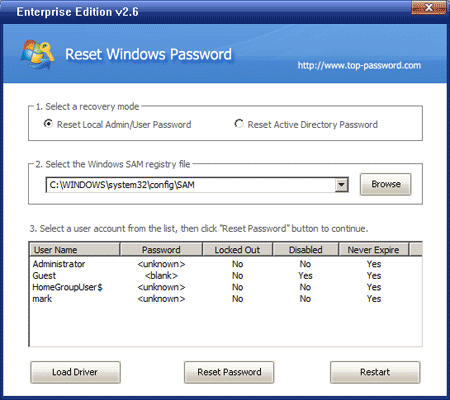
- From the window, you can see a list of local user accounts existing in your Windows 8 installation. For dual-boot or multi-boot computer, make sure you choose your desired Windows SAM registry hive from the drop-down list.
- Choose the local user account which is linked to your Microsoft account, and then click on Reset Password button. The program will assign a new password (Password123) to your Microsoft account.
- Remove the Live CD and restart the computer, you can then log in to your Windows 8 Microsoft account using the new password: Password123
Note: This Live CD only replaces the password hash of your Microsoft account which is cached on the local computer, so you can log in to your Windows 8 PC using a new password. It doesn’t reset your online account password.