One of the most common error messages I come across when logging into SQL Server is error 18456: Login failed for user you provided. Can anybody tell me what the error code means?
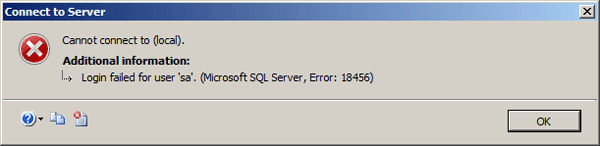
This generic message means that SQL Server is not able to grant you access, but this message is useless for you to determine the true reason for the failure. To troubleshoot the SQL Server login failure, we have to dig into the SQL Server error log and find the root cause of the issue.
SQL Server maintains its own error logs that contain messages describing informational and error events. The SQL Server error log is the best place for a Database Administrators to look for informational messages, warnings, critical events, etc. By default, the error log is located at the folder:
C:\Program Files\Microsoft SQL Server\MSSQL.{instance_name}\MSSQL\LOG\
Typically, SQL Server retains backups of the previous six logs and gives the most recent log backup the extension .1, the second most recent the extension .2, and so on. The current error log has no extension.
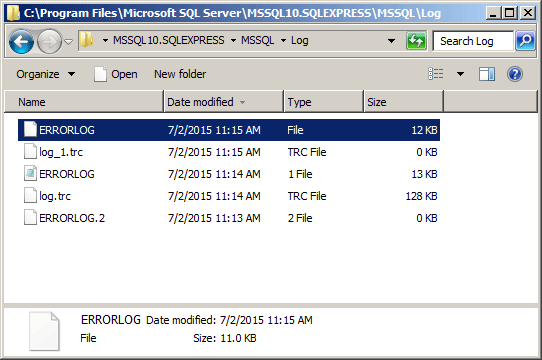
To check out what is happening on your database, you should check out the current error log file named ERRORLOG. It’s just a text file and you can open it with any text editor, such as Notepad. When you receive the login failure message (error 18456), just open the ERRORLOG file, browse to the end and you can find the corresponding entry related to your login issue.
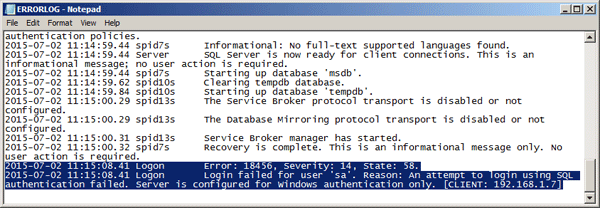
The key to the message is the ‘State’ which the server will accurately set to reflect the source of the problem. In the example above, State 58 indicates that you’re trying to login with a SQL Server account that’s not a supported authentication mode for your server.
The common error states and their descriptions are provided in the following table:
| ERROR STATE | ERROR DESCRIPTION |
| State 2 and State 5 | Could not find a login matching the name provided. |
| State 6 | Attempt to use a Windows login name with SQL Authentication |
| State 7 | Login disabled and password mismatch |
| State 8 | Password mismatch |
| State 9 | Invalid password |
| State 11 and State 12 | Valid login but server access failure |
| State 13 | SQL Server service is paused. No new connections can be accepted at this time. |
| State 16 | A connection was successfully established with the server, but then an error occurred during the pre-login handshake. |
| State 18 | Change password required |
| State 23 | Access to server validation failed while revalidating the login on the connection. |
| State 38, 40, 46 | Failed to open the database specified in the login properties. |
| State 50 | Current collation did not match the database’s collation during connection reset. |
| State 51 | Failed to send an environment change notification to a log shipping partner node while revalidating the login. |
| State 56 | Failed attempted retry of a process tokenvalidation. |
| State 58 | An attempt to login using SQL authentication failed. Server is configured for Windows authentication only. |
| State 65 | Password did not match that for the user provided. |