Can’t log in to Windows 10 as the user profile failed the logon or you forgot the admin password? How can I do a factory reset without logging in? Here’s a step-by-step walkthrough on resetting Windows 10 laptop, PC or tablet without logging in.
How to Reset Windows 10 Laptop, PC or Tablet without Logging in
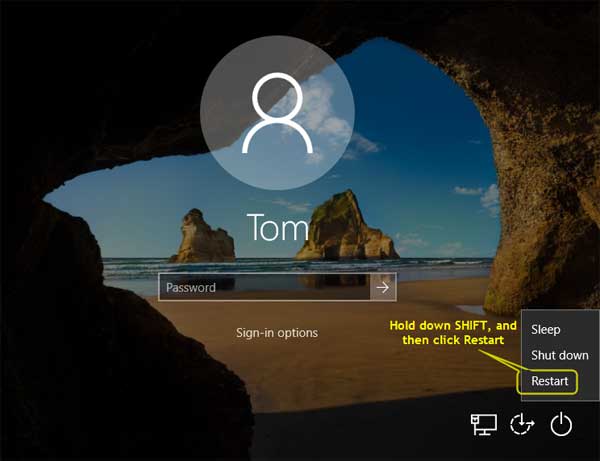
If you can at least reach the login screen, click on Power icon on lower right corner, then hold down the SHIFT key and then select Restart.
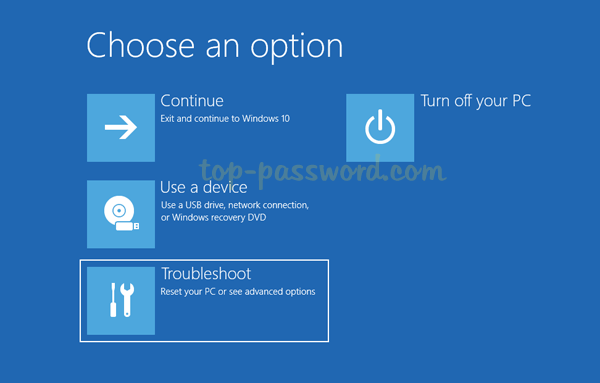
Windows 10 will reboot and ask you to select an option. Click Troubleshoot.
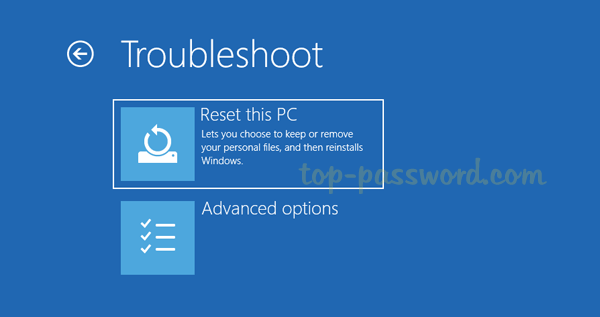
On the next screen, click the Reset this PC button.
You’ll see two option: “Keep my files” and “Remove everything“. The former will keep all of your personal files but it requires you to provide current admin password later on. If you’ve forgotten your password, you have to pick the latter option to erase everything.
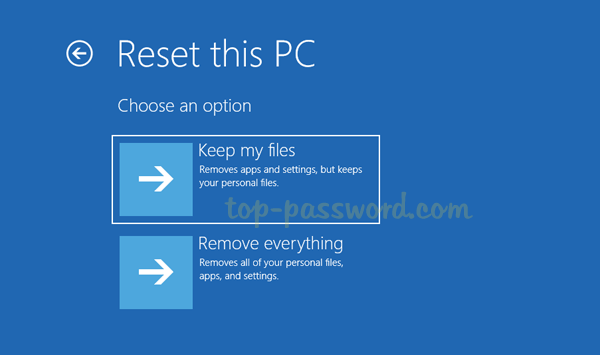
Keep My Files
If you’ve selected the “Keep my files” option, the next screen will prompt you to choose an existing administrator account on your PC to continue.
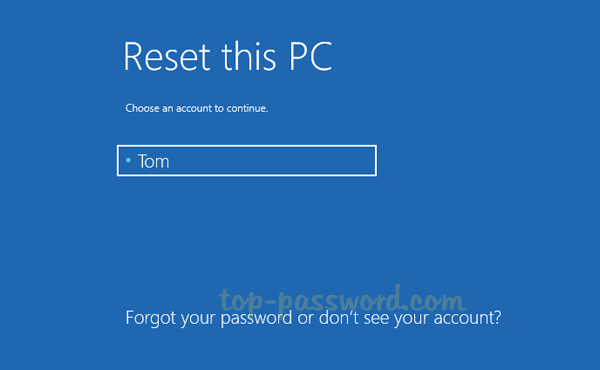
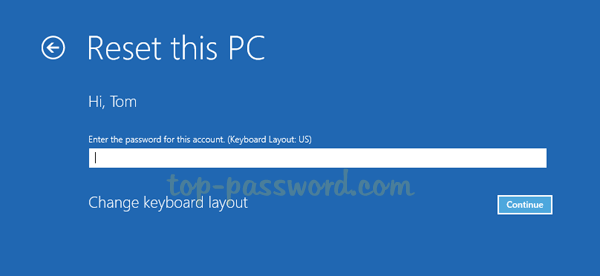
Next, enter your user password. If you can’t remember the password, you’ll have to go back to the previous step and choose “Remove everything”.
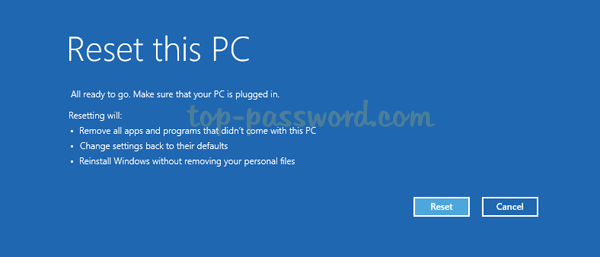
Click on Reset. The computer will reboot itself several times and begin the factory reset process.
Remove Everything
If you’ve selected the “Remove everything” option, you’ll next be asked if you want to wipe all the drives, or only the drive where Windows 10 is installed.
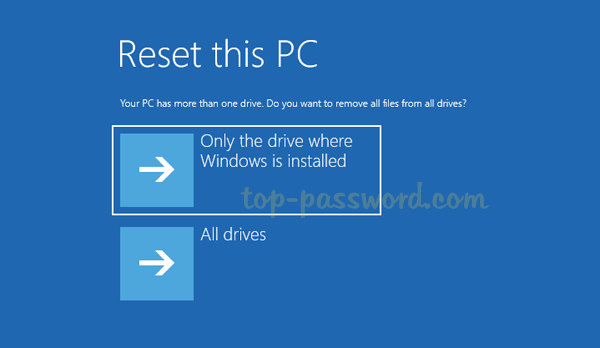
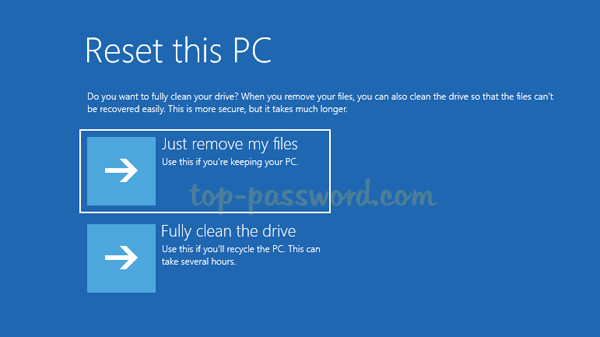
Next, you’ll get another two options: “Just remove my files” and “Fully clean the drive“. If you are keeping this computer, select the former option which is faster. If you are recycling the computer, select the latter option to wipe the drives and make your files completely unrecoverable.
Click on Reset and just wait for the factory reset process to complete. This might take an hour or more.
That’s all there is to it.