When a standard user tries running a program that needs elevated permissions, the UAC prompt will prompt you to enter administrator credentials to confirm. If you want to avoid being prompted all the time, you can set UAC to automatically deny elevation requests.
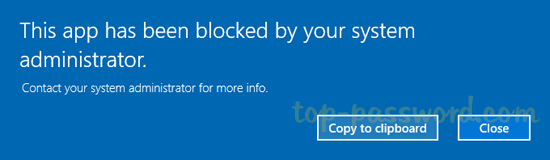
In this tutorial we’ll show you 2 simple ways to change UAC behavior for standard users in Windows 10.
Method 1: Change UAC Behavior for Standard Users Using Group Policy
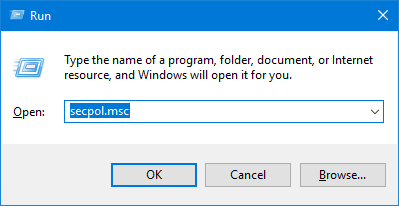
- Press the Windows key + R to open the Run box, type secpol.msc and hit Enter.
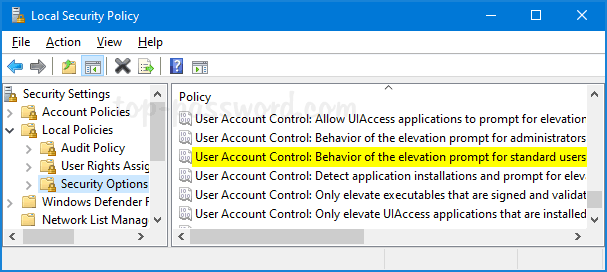
- In the Local Security Policy window, navigate to Local Policies -> Security Options. On the right, double-click the policy called “User Account Control: Behavior of the elevation prompt for standard users“.
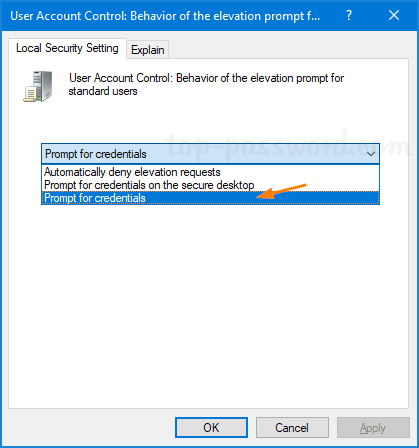
- Click the drop-down box to select the UAC behavior you want to set for standard user accounts, and then click OK.
Method 2: Change UAC Behavior for Standard Users Using Registry Editor
- Open Registry Editor and navigate to the following key:
HKEY_LOCAL_MACHINE\SOFTWARE\Microsoft\Windows\CurrentVersion\Policies\System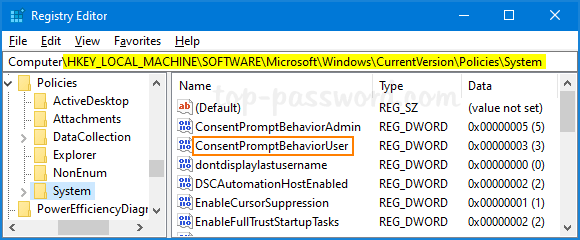
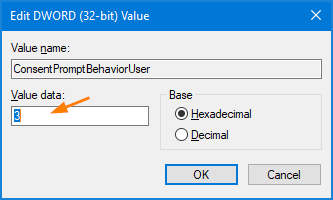
Next, double-click on the DWORD ConsentPromptBehaviorUser to modify it.
- Set its value data to one the following values:
- 0 – Automatically deny elevation requests
- 1 – Prompt for credentials on the secure desktop
- 3 – Prompt for credentials (Default)
- Reboot your machine to apply the changes.