If you try to connect to the computer using Remote Desktop and login to the user account that has no password set, you will get the error “Login failure: user account restriction. Possible reasons are blank passwords not allowed, logon hour restrictions, or a policy restriction has been enforced”. Clicking the OK button will instantly boot you off the remote desktop connection.
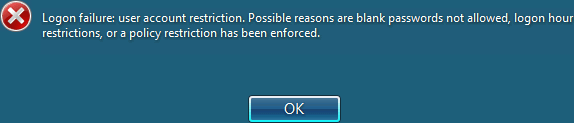
The error happens because in Windows operating system such as Windows XP, Windows Vista, Windows 7, Windows Server 2003 and Windows Server 2008 (or their R2 versions) does not allow local user to log on remotely via network logon if the user account does not have a password set.
Setting a password for the user account that you want to login solves the problem but that would also mean you would have to type in the password every time you start the computer. You can also however disable the blank password check to allow Remote Desktop connection to login to account without password.
1. Click the Start button and type gpedit.msc in the Search programs and files bar and hit enter.
2. At the left pane, go to Local Computer Policy > Computer Configuration > Windows Settings > Security Settings > Local Policies > Security Options
3. Look for “Accounts: Limit local account use of blank passwords to console logon only” and double click on it.
4. By default the Enable option is selected and all you need to do is select “Disable” and click OK.
Now you can connect to the computer using Remote Desktop and login to the user account that don’t have a password. Some Windows such as the XP home doesn’t have gpedit.msc and you will have to make the changes from registry.
1. Type regedit at the Search programs and files bar and hit enter.
2. Navigate to HKEY_LOCAL_MACHINE\SYSTEM\CurrentControlSet\Control\Lsa
3. Look for LimitBlankPasswordUse name on the right pane, double click on it and set the value data to 0.