• Home
  • Content
  • RSS
  • Log in

Password Recovery

Provide useful password recovery tricks, guides and software
  • Home
  • Password Recovery Bundle
  • Reset Windows Password
  • Product Key Finder
  • Protect My Folders

Disable / Enable Password Login After Waking Windows 10 from Sleep

October 4, 2015 updated by Admin Leave a reply »

When you wake up Windows 10 from sleep, hibernation or standby, it might ask you to login with your username and password. While this is a good security measure for a work computer, it can be annoying for users who feel that their computers is in a secure environment. In this article we’ll show you how to disable or enable password login after waking Windows 10 from sleep mode.

How to Disable / Enable Password Login After Waking Up from Sleep?

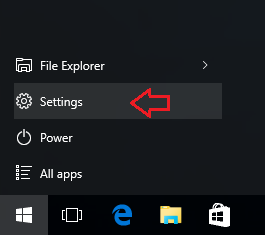
  1. In Windows 10, click on the Start button and then select Settings from the Start Menu.
    start-menu

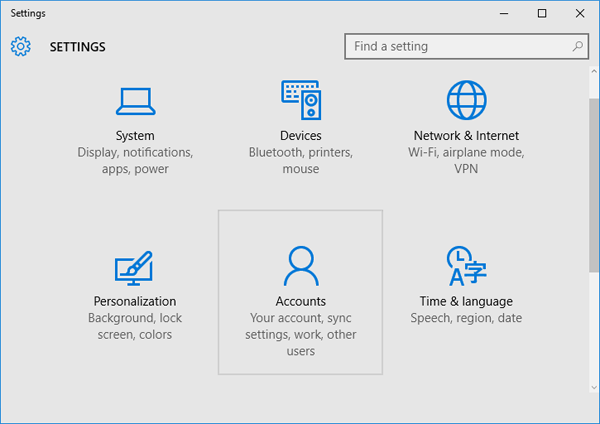
  2. When the Settings window opens, click on Accounts.
    settings

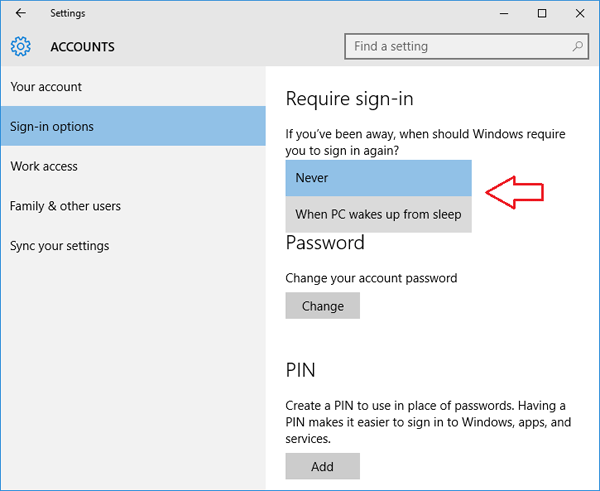
  3. Next, go to the Sign-in options area. Click on the drop-down box under the “Require sign-in” section.
    require-login-on-wakeup

  4. You’ll see two options – “Never” and “When PC wakes up from sleep“. If you select Never, your PC will not ask you to enter a password when you resume it from sleep. Or set it to “When PC wakes up from sleep” if you want to enable the password login after sleep.

Related posts:

  • 2 Ways to Stop Windows 10 from Asking for Password after Sleep
  • Stop Mouse / Keyboard from Waking Computer in Windows 10
  • 2 Ways to Enable / Disable Automatic Login in Windows 10
  • Enable or Disable Passwordless Login for Microsoft Accounts in Windows 10

  • Previous Post: Fix “Create Password Reset Disk Link Not Working” in Windows 10
  • Next Post: How to Change Keyboard Layout for Windows 10/8/7 Login Screen

Posted in Tips & Tricks, Windows 10

Tags: password after sleep mode wake from sleep no login windows 10 wake from sleep windows 10 wake from sleep no password

    • Subscribe Subscribe to my blogs feed
    • Previous Entry Fix “Create Password Reset Disk Link Not Working” in Windows 10
    • Next Entry How to Change Keyboard Layout for Windows 10/8/7 Login Screen

Back to Top

© 2025 top-password.com. Proudly powered by WordPress.