After installing or upgrading to Windows 8 / 8.1, you might find that the built-in Administrator account is unable to run any Modern UI Apps. If you try to run the Modern app such as Calendar, Photos or Internet Explorer, you’ll get this error message: “This app can’t be opened using the Built-in Administrator account please sign in with a different account and try again.” or “This app can’t be activated by the Built-in Administrator”.
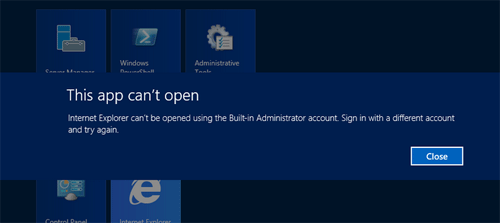
Windows 8 Modern App requires that the UAC (User Account Control) be enabled. If you’ve disabled UAC on your computer, you need to turn on UAC again. Here are additional steps to fix this problem:
- Press the Windows key + R to bring up the Run box, and then type secpol.msc. Press Enter.
- On the Local Security Policy window, navigate to Security Settings –> Local Policies –> Security Options.
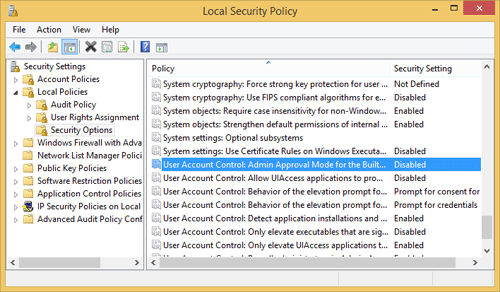
- On the right panel, double-click on the option “User Account Control: Admin Approval mode for the Built-in Administrators Account” and enable it.
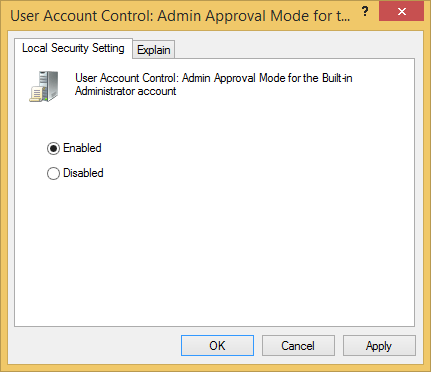
- Click on Apply and exit Local Security Policy.
- Press the Windows key + R to bring up the Run box, and then type regedit. Press Enter.
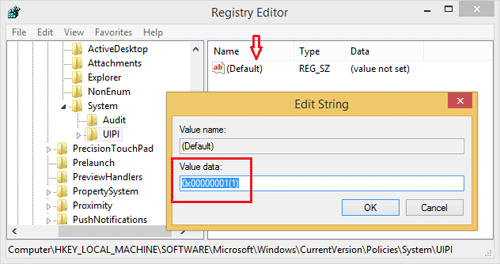
- On the Registry Editor window, navigate to HKEY_LOCAL_MACHINE\SOFTWARE\Microsoft\Windows\CurrentVersion\Policies\System\UIPI. On the right side, double-click on default and change the value to “0x00000001(1)”. Click OK.
- Restart your computer. Now you should be able to run Modern UI Apps using the Built-in Administrator account.
Note: If you are unable to log on Windows 8 / 8.1 as the built-in administrator account, you can enable the built-in administrator account to log on Windows easily.