• Home
  • Content
  • RSS
  • Log in

Password Recovery

Provide useful password recovery tricks, guides and software
  • Home
  • Password Recovery Bundle
  • Reset Windows Password
  • Product Key Finder
  • Protect My Folders

How to Enable Automatic Login in Ubuntu

August 21, 2014 updated by Admin Leave a reply »

If you are the only regular user of your computer then configuring Ubuntu to automatically login without the need for a password when powered on is an easy way to speed up the startup time. Just follow the tutorial outlined below to make Ubuntu automatically logon to your user account without asking you for a password. This will just skip the login screen instead of removing the login password.

How to Enable Automatic Login in Ubuntu?

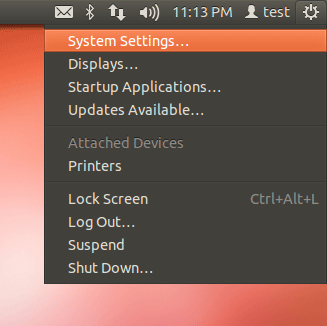
  1. Click the gear icon in the top-right corner and select System Settings.
    ubuntu-gear

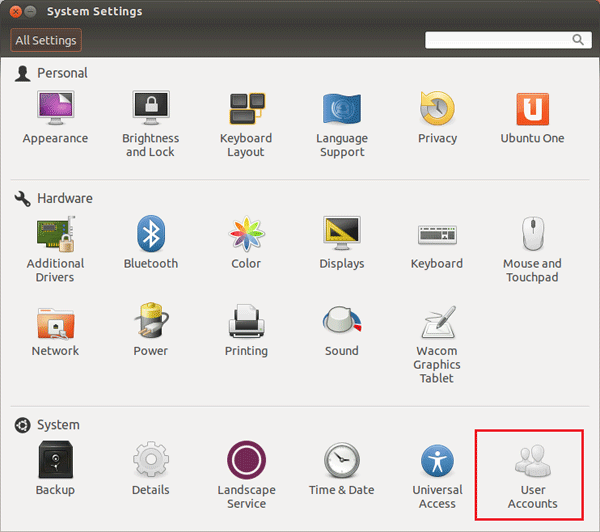
  2. When the System Settings window opens, click on User Accounts.
    system-settings

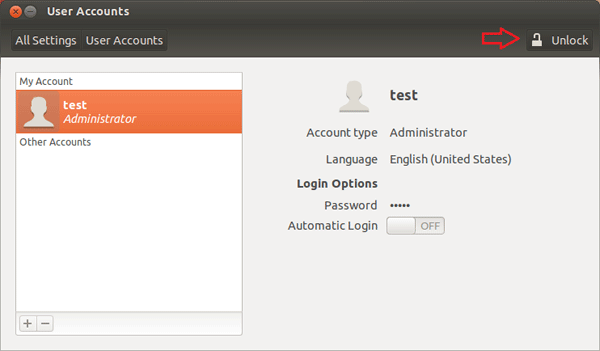
  3. In the User Accounts dialog box, there is a list of current users. Click the Unlock button at the top right corner of the window to make changes.
    ubuntu-unlock-account

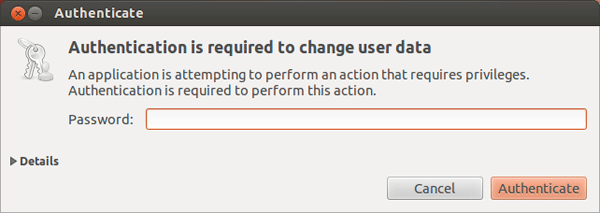
  4. A password is required to make changes to users and groups, and only those users with administrative access are able to do so.
    authenticate

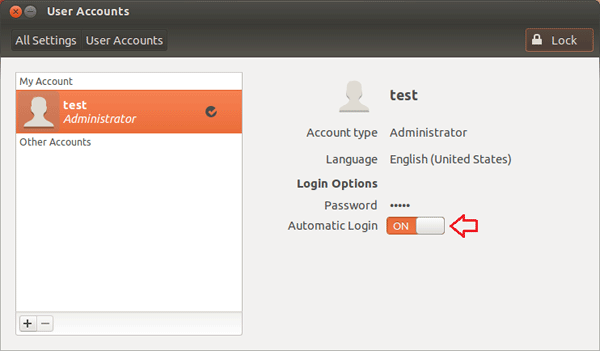
  5. Click the button next to Automatic Login. It should now say On.
    ubuntu-automatic-login

  6. Click Lock to save your changes. The next time you power on your computer it will boot straight to the desktop without requiring a login.

Related posts:

  • How to Reset Windows Password with Ubuntu for Free
  • 2 Ways to Enable / Disable Automatic Login in Windows 10
  • Disable / Enable Password Login After Waking Windows 10 from Sleep
  • Enable Auto Login When Windows Updates Require a Restart

  • Previous Post: Bypass Windows 8 Login Screen on Wake up from Sleep
  • Next Post: How to Downgrade from Windows 8 Pro to Windows 7 for Free

Posted in Others, Tips & Tricks

Tags: ubuntu auto login ubuntu automatic login

    • Subscribe Subscribe to my blogs feed
    • Previous Entry Bypass Windows 8 Login Screen on Wake up from Sleep
    • Next Entry How to Downgrade from Windows 8 Pro to Windows 7 for Free

Back to Top

© 2025 top-password.com. Proudly powered by WordPress.