Forgot the password of your email account setup in Microsoft Outlook 2010? You can still check email messages because you have the password remembered in MS Outlook. The problem is that you’ll lose access to your email account after re-installing OS or uninstall Office application. Is it possible to reveal the password in Outlook 2010?
In this guide I’ll show you how to reveal email account password in Microsoft Outlook 2010. The most important is that your email password is already stored in Outlook application, then you can reveal your forgotten password easily with Password Recovery Bundle.
How to Reveal Email Account Password in Outlook 2010?
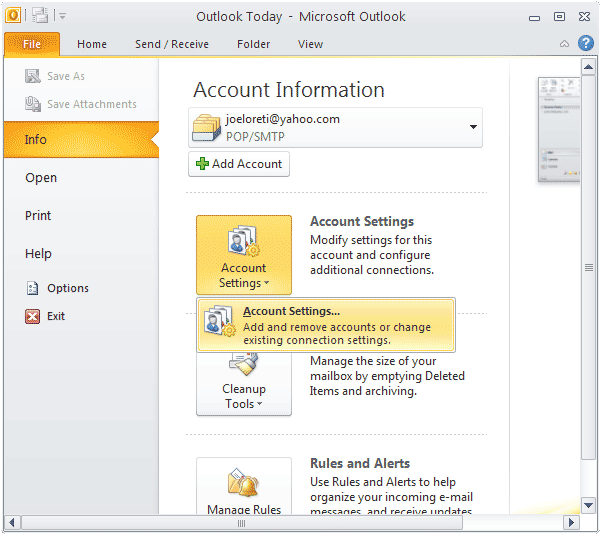
- Open Outlook 2010, click on the File tab to access the Backstage view.
- Click on Account Settings and then Add and remove accounts or change existing connection settings.
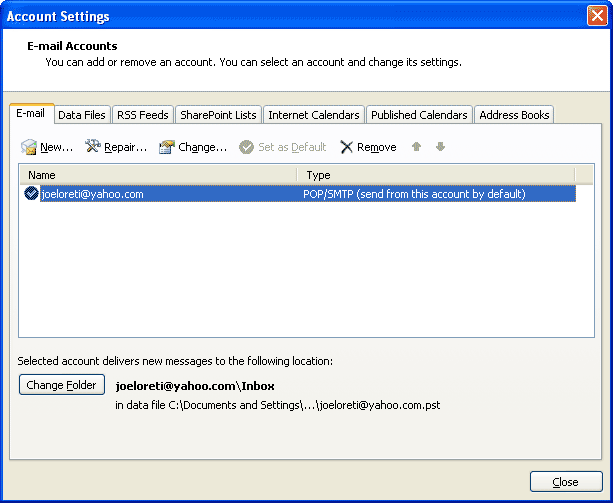
- In the Account Settings window, double-click your target email account under the E-mail tab.
- It will bring up the Change Account window. You will see User Information, Server Information (Server Type, Incoming and Outgoing Server) and Logon Information (Email account and password).
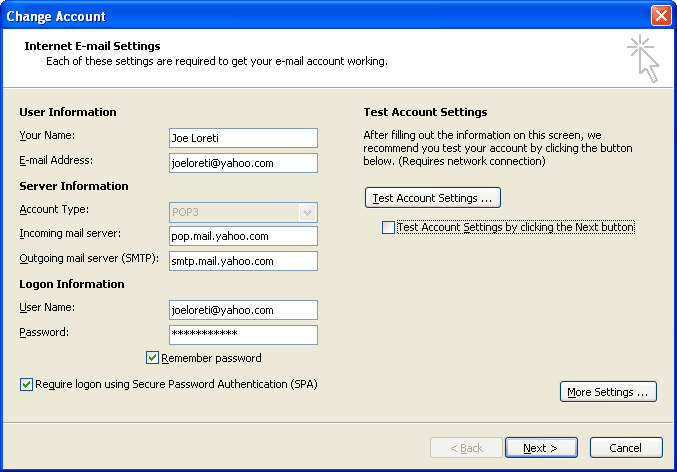
- If your email password is masked with some asterisk characters, you can go to next step to reveal the actual password hidden behind the password field. If the password field is empty, you need to contact your email provider to recover your password.
- Download and install Password Recovery Bundle on your computer.
- Launch Password Recovery Bundle and then click on Start Recovery button.
- Choose the Asterisk Password option from the drop-down menu list. For 64-bit editions of Outlook 2010, please use the Asterisk Password (x64) instead.
- The Asterisk Password Recovery window will appear. Click on the icon
 , drag the icon to the password field in Outlook 2010.
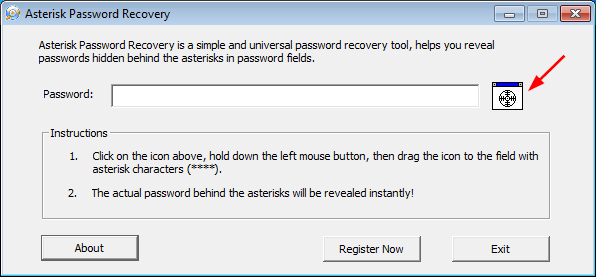
- The actual email account password hidden behind asterisks will be revealed immediately.
With Password Recovery Bundle you can also reveal email account password stored in Microsoft Outlook 2007, 2003, XP and 2000.